
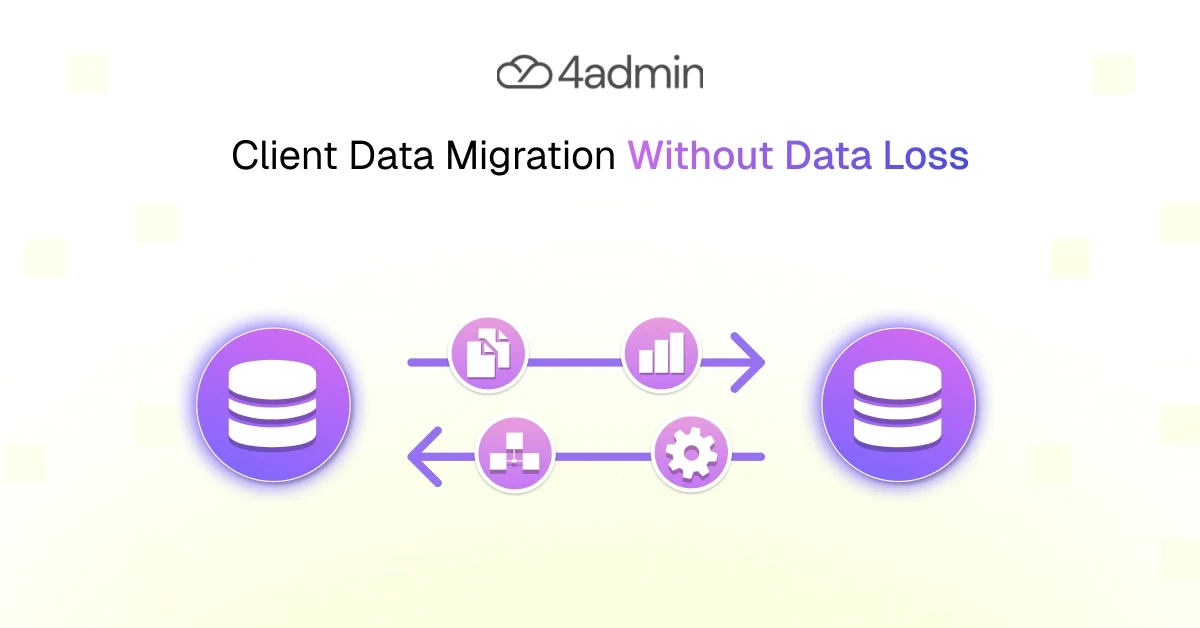
Moving client data between back-office systems can quickly become one of the most stressful projects in a financial advice firm.
It is not just a case of exporting records from one platform and importing them into another. Every client file may contain policy details, provider documents, notes, servicing history, audit logs, and workflow dependencies that teams rely on every day.
When the migration is rushed, firms risk missing records, broken document links, duplicate clients, compliance gaps, and a new system that staff do not fully trust.
This blog helps you understand how to migrate client data between back-office systems safely, without losing critical information or disrupting day-to-day operations.
How to Migrate Client Data Between Back-Office Systems: 4 Key Steps
Migrating client data between back-office systems is not a simple export and import exercise.
A structured migration plan as outlined below helps firms reduce risk and protect data integrity before, during, and after the system migration.
1. Pre-Migration: Preparation and Safeguards
The pre-migration stage is where firms reduce most of the risk. Before anything is moved, the firm needs to understand what data exists, what condition it is in, and how it will be protected.
Create a Full Backup
Before any data transfer begins, create a complete backup of the source system.
This should include:
Client records
Policy details
Provider correspondence
Documents
Notes
Workflow history
Audit logs
Linked files
The backup should be stored securely and tested before migration starts. It is not enough to assume a backup has worked. Firms should confirm that records and files can actually be restored if something goes wrong.
For financial advice firms, this is especially important because historical data often supports suitability, servicing, complaints handling, and GDPR compliance.
Cleanse the Data
A migration is a good opportunity to improve data quality.
Many legacy systems contain:
Duplicate client records
Outdated addresses
Inconsistent provider names
Incomplete policy fields
Old task records
Documents stored in the wrong place
Clients with missing servicing information
Moving this into a new platform without review simply transfers the same problems into the new system.
Data cleansing should happen before migration wherever possible. This includes removing duplicates, standardising formats, correcting obvious errors, and flagging incomplete information for review.
Clean data makes the migration smoother and helps the new system become more useful from the start.
Establish a “Source of Truth”
Every migration needs a clear source of truth.
This means deciding which system, spreadsheet, folder, or database holds the most accurate version of each record.
For example:
The CRM may hold the correct client contact details.
Provider documents may contain the latest plan values or contribution details.
Compliance files may hold the most complete audit trail.
Without a defined source of truth, teams can import conflicting data.
Set a “Freeze” Period
A freeze period prevents data from changing while the migration is being prepared or completed.
During this period, teams may:
Stop editing certain records in the old system
Use a controlled process for urgent updates
Log any changes made after the export
Add final updates during reconciliation
Without a freeze period, data can be exported from the legacy system while advisers or administrators are still making changes. This creates mismatches between the old and new systems.
A freeze period does not always mean the whole business stops working. It means changes are controlled, logged, and included in the final migration process.
2. Planning and Mapping
Once the data is backed up and cleaned, the firm needs to plan how information will move from one system to another.
This is where data mapping, transformation rules, and documentation become essential.
Map Data Fields
Data mapping is one of the most important parts of client data migration for financial advisers.
Each field in the old system needs to be matched to the correct field in the new system.
This includes basic client information such as:
Name
Date of birth
Address
Phone number
Email
National Insurance number
It also includes more complex advice firm data such as:
Provider names
Plan numbers
Policy types
Contribution history
Valuations
Risk profiles
Review dates
Servicing status
Document links
Poor field mapping can lead to information being placed in the wrong field, missed entirely, duplicated, or imported in a format the new system cannot use.
Define Transformation Rules
Legacy systems often store data differently from modern back-office systems.
For example:
One system may use free-text fields.
Another may require dropdown values.
Dates may be stored in different formats.
Provider names may be inconsistent.
Client statuses may not match between systems.
Policy types may use different labels.
Transformation rules define how data should change before it enters the new system.
Examples include:
Date formats are standardised
Old policy categories are matched to updated product types
Blank mandatory fields are flagged for review
These rules protect data integrity and make the new system easier to search, report on, and trust.
Document Everything
Every decision should be documented.
This includes:
Migration plan
Data mapping rules
Transformation logic
Backup process
Validation checks
Error handling process
Test results
Sign-off decisions
Documentation matters because migration projects often involve several people: operations, compliance, advisers, administrators, paraplanners, IT, and software providers.
If decisions are not recorded, it becomes difficult to explain why data was handled in a certain way.
3. Execution: Choosing the Right Strategy
The execution stage is where the firm decides how the data will move.
There is no single best approach. The right strategy depends on the size of the firm, the quality of the data, the complexity of the legacy systems, and how much disruption the business can tolerate.
Phased (Trickle) Migration
A phased migration moves data in stages rather than all at once.
A firm may migrate clients by:
Adviser
Office
Client segment
Service type
Product type
Data category
This approach reduces risk because teams can test the process, identify issues, and improve the migration before moving everything.
It is often useful for larger financial advice firms or firms with complex legacy systems.
The downside is that both systems may need to be used for a period of time. This can create operational complexity unless ownership and workflows are clearly managed.
Big Bang Migration
A big bang migration moves all selected data at once, usually over a short cutover period.
This approach can be faster and avoids running two systems for a long time.
It works best when:
The data is clean
The scope is clear
The field mapping has been tested
The firm has completed pilot migrations
A rollback plan is in place
However, it carries more risk. If the data transfer fails, if validation is weak, or if users are not ready, the firm can face serious disruption.
For smaller firms with simpler data structures, it may be practical. For larger advice firms, it needs careful control.
Use Staged Data Tables
Staged data tables act as a middle layer between the old system and the new system.
Data is exported from the source system, then:
Cleaned
Standardised
Transformed
Checked
Reconciled
Imported into the new platform
This is useful when the old and new systems store data differently.
It also helps with error handling because issues can be identified before the information enters the new system.
Staged tables can support data validation, reconciliation, and transformation rules. They give firms more control over the migration process and reduce the chance of importing poor-quality data.
4. Validation: Ensuring No Data Loss
Validation is where firms prove that the migration has worked.
It is not enough to confirm that data has been imported. The firm needs to confirm that the data is accurate, complete, connected, secure, and usable.
Run Automated Validation
Automated validation checks whether the expected data has arrived in the new system.
This may include:
Record counts
Missing field checks
Duplicate checks
Date format checks
Document link checks
Policy-to-client matching
Exception reports
For example, if the source system contains 5,000 client records, the new system should show the same expected number unless certain records were deliberately excluded.
Automated checks help identify obvious issues quickly, but they should not be the only form of validation.
Conduct Pilot Tests
Pilot tests allow the firm to migrate a small sample before moving the full dataset.
The sample should include:
Simple client records
Joint clients
Clients with multiple policies
Archived clients
Ongoing service clients
Records with attached documents
Cases with complex provider history
A good pilot test helps reveal field mapping problems, missing relationships, broken document links, and usability issues.
It also gives advisers, administrators, and compliance teams a chance to review whether the migrated records make sense in real working conditions.
Run Systems in Parallel
Running systems in parallel means keeping the old and new systems available for comparison during a controlled period.
This helps teams check that the new system reflects the right data before the old one is fully retired.
Parallel running can support:
Reconciliation
User confidence
Historical checks
Audit trail review
Policy data comparison
Document verification
The key is to define which system is active for updates. Otherwise, teams may start entering new data in both places.
End-User Testing
User acceptance testing (UAT) is essential because technical validation does not always prove that the data is usable.
End-user testing should involve:
Advisers
Administrators
Paraplanners
Compliance staff
Operations leads
They should test real scenarios, such as:
Preparing for a client review
Checking policy history
Finding provider correspondence
Updating a client record
Reviewing audit evidence
Running reports
Checking workflow status
Why Client Data Migration Is High-Risk for Advice Firms
Client data migration is high-risk because advice firms depend on complete and accurate records.
A missing provider document, incorrect policy value, broken audit trail, or duplicated client record can create operational and compliance issues.
The risk is higher because firms are not only moving basic contact data. They are often moving:
Sensitive personal data
Financial information
Policy records
Provider correspondence
Fact-find data
Suitability evidence
Servicing history
Review notes
Audit logs
Client documents
Financial advice firms also need to consider GDPR compliance and data security throughout the migration.
The risk is not only technical. Poor migration affects client servicing, annual reviews, replacement business, adviser confidence, and compliance oversight.
If staff do not trust the new system, they may create workarounds, spreadsheets, and manual checks. That weakens the value of the migration.
Key Data Migration Approaches for Financial Advice Firms
The main migration approaches for data migration back office systems are big bang, phased, parallel, hybrid, and staged migration.
Big Bang Migration
This is where all selected data moves in one planned cutover.
Best suited when:
The dataset is clean
The firm is smaller or less complex
The migration scope is clear
The new system has been tested
A rollback plan exists
Main risk:
If something fails, the impact is immediate and business-wide.
Phased Migration
This moves data in stages.
Best suited when:
The firm has multiple teams or offices
Data is complex
The business wants lower risk
Different client segments need different handling
Main risk:
Teams may need to work across two systems for a period of time.
Parallel Run
This keeps both systems available for a controlled period.
Best suited when:
The firm needs extra assurance
Compliance wants additional checks
Users need time to build confidence
The old system contains complex historical data
Main risk:
Without clear controls, users may update both systems.
Hybrid Migration
This combines different methods.
For example:
Clean client records move in one stage
Complex policy records move later
Archived data remains read-only
Certain documents are migrated separately
Best suited when:
Data quality varies across the firm
Some records are simple and others need review
The firm wants a balanced approach
Staged Table Migration
This uses an intermediate table to prepare the data before import.
Best suited when:
Systems use different data structures
Data needs cleansing
Transformation rules are required
Reconciliation is important
Main benefit:
It gives the firm more control before data enters the new back-office system.
Best Practices for Migrating Client Data Without Losing Anything
1. Inventory All Data Sources First
Before migration starts, list every data source. This may include CRM systems, back-office platforms, document storage tools, spreadsheets, email folders, provider portals, workflow systems, and archived databases.
2. Preserve the Full Client Record
A client record is more than contact details. It may include policy information, documents, notes, tasks, provider communication, risk data, review history, and audit logs. The migration should protect the full context.
3. Build a Detailed Field Mapping Document
A field mapping document shows where each data point comes from, where it goes, and how it changes during the migration. This reduces confusion and supports error handling.
4. Protect Data Security During Migration
Client data should be encrypted, access should be restricted, and transfer methods should be controlled. Sensitive financial data should not be moved through unsecured files or informal channels.
5. Involve the People Who Use the Data
Advisers, administrators, paraplanners, and compliance teams understand how data is used in practice. Their input helps identify records, fields, and workflows that technical teams may miss.
6. Keep the Source System Available in Read-Only Mode
Keeping the legacy system available in read-only mode helps with post-migration checks. It also prevents accidental edits while still allowing teams to verify historical data.
7. Reconnect Integrations and Workflows
Migration is not complete until connected workflows are working. This may include CRM integrations, document management, reporting, task routing, provider communication, and back-office updates.
8. Continue Data Quality Checks After Go-Live
Data validation should continue after go-live. Firms should monitor duplicates, missing fields, broken links, user feedback, and reporting issues. Some errors only appear once people start using the system properly.
Common Client Data Migration Mistakes to Avoid
1. Migrating Everything Without Cleaning It First
Moving poor-quality data into a new system creates poor-quality outcomes. Cleanse before migration wherever possible.
2. Not Defining the Scope Clearly
Without a clear scope, teams may move unnecessary data, miss critical records, or disagree on what should be included.
3. Poor Field Mapping
Weak data mapping leads to missing, misplaced, or unusable information. It is one of the most common causes of migration issues.
4. Ignoring Relational Data
Client data is connected. Policies, documents, notes, tasks, and audit logs need to remain linked to the right client.
5. Failing to Preserve Legacy IDs
Legacy IDs help with reconciliation and traceability. Removing them too early can make it harder to investigate issues.
6. Skipping Test Migrations
Test migrations reveal problems before they affect the live business. Skipping them increases risk.
7. Relying Only on Technical Validation
A system can say the import worked while users still find missing context. Human review is needed.
8. Switching Off the Old System Too Early
Retiring the source system before reconciliation is complete can leave the firm without a reliable reference point.
9. Not Having a Rollback Plan
A rollback plan gives the firm a controlled way to recover if the migration fails or produces unacceptable errors.
10. Treating Migration as Only an IT Project
Data migration affects operations, compliance, advice delivery, and client service. It needs business ownership, not just technical execution.
Why Data Migration Is Not Just a Technical Exercise
A system migration changes more than the software a firm uses. It changes how people find information, complete tasks, prepare advice, and evidence their work.
For advice firms, this affects multiple teams:
Advisers need quick access to accurate client and policy information.
Administrators need clear workflows, complete records, and fewer manual checks.
Paraplanners need reliable data to prepare cases without rebuilding the client file.
Compliance teams need audit logs, documents, notes, and evidence to remain easy to review.
Operations teams need visibility over workload, ownership, and bottlenecks.
This is also where the wider data quality problem becomes important.
Even after a successful migration, firms can quickly recreate the same issues if provider information still arrives in different formats, missing details are chased manually, and data is copied into systems by hand.
4admin helps advice firms improve the structure and reliability of client, policy, and provider information after migration by:
Automating the LoA workflow
Extracting structured data from provider packs
Identifying missing information
Supporting data validation
Reducing manual rekeying into CRM and back-office systems
Helping keep client and policy records more complete over time
A new system is only valuable if the data going into it remains complete, accurate, and trustworthy.
Migration Success Depends on Trust in the Data
To migrate client data between back-office systems successfully, firms need a clear plan, secure backup process, careful data mapping, strong validation, and reliable reconciliation.
For financial advice firms, the goal is not just to move records. It is to protect the full client file, maintain compliance evidence, and give teams confidence in the new system.
If your firm wants to reduce manual admin, improve data quality, and keep client records easier to manage after migration, book a demo with 4admin.
FAQs
What data should be checked before migrating from one back-office system to another?
Review client records, contact details, account histories, notes, attachments, custom fields, permissions, and any linked compliance data.
How do I map fields correctly between two back-office platforms?
Match each source field to a destination field by data type, format, and business meaning, then validate the mapping with a sample export/import.
How can I test a migration before moving all client records?
Run a small pilot migration with a sample of records, compare results against the source system, and fix errors before the full move.
How do I reduce downtime during a back-office system migration?
Plan the cutover in off-peak hours, use phased migration where possible, and keep a rollback plan ready.
What are the most common causes of data loss in system migrations?
Data loss usually comes from poor field mapping, incomplete backups, bad data quality, unsupported formats, and skipped validation checks.
Ready to automate your admin processes?
Learn how you can reduce admin backlog, ensure compliance, and increase capacity.